
Sync your designs to your dispensary TVs with Canva Integration on Seed Signage
Design it in Canva, see it on the wall. No exports, no USB sticks, no re-uploads.
FEATURE SPOTLIGHT
Bring your designs to life on your in-store displays
Connect your Canva account to Seed and pull designs straight into your Media Library or a Media Playlist — no downloads, no file transfers, no "final_v3_FINAL.png". Once imported, a design drops into any Channel and shows up on your in-store TVs. Refreshing a promo or launching a campaign goes from design to display in minutes.
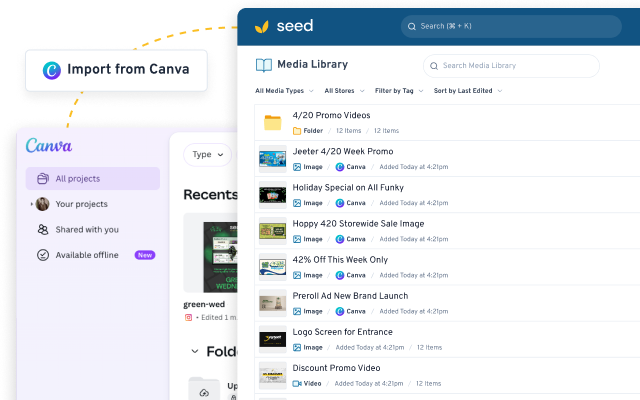
Showcase your Canva designs on your in-store TVs
Your whole Canva library, one click away from your in-store TVs.
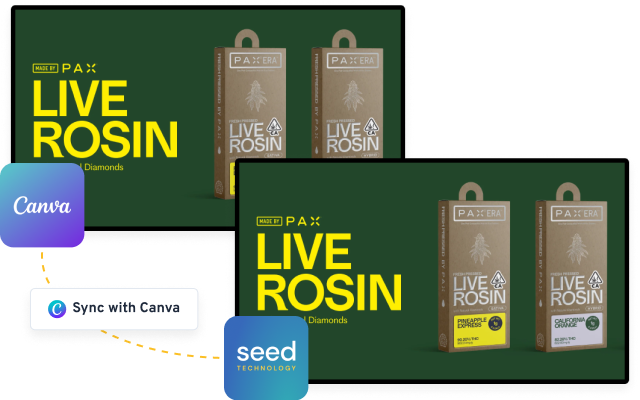
Automatically sync edits from Canva to Seed
Edit the design in Canva and the screens catch up on their own. Fix a typo once, it's fixed everywhere.
Design in Canva. Deploy in your stores with Seed.
One-Click Import
Connect your Canva account and send designs directly to your Media Library or Playlist, no downloads needed.
TV-Ready Instantly
Imported designs from Canva can be deployed on your in-store Seed TVs immediately.
Fewer Steps
Design to display in minutes — campaign updates and promos without the file shuffle.
FAQs
How do I connect my Canva account to Seed?
Connect your account to Canva within Seed Manager via Account → User → Integrations. Follow the full step-by-step guide here: Integrating Seed Manager with Canva
If I make changes to a design in Canva, will the changes appear on Seed?
Yes. Any edits made in Canva will automatically sync with Seed.
Do Canva designs update automatically on screens?
Yes. If a synced Canva design is updated, those changes will reflect anywhere the design is being used.
Are Canva animations or presentations supported?
Yes. Canva animations will display as designed, importing into your Seed Media Library as videos.
Can I edit Canva designs directly in Seed?
Canva designs can only be edited in Canva. You can use the edit link on each imported file to quickly open and edit it in Canva.
Will all of my Canva designs be imported when I connect my account?
No. You choose which designs to import. Nothing is brought in automatically.
Can everyone in my Seed Manager organization see all of my Canva designs?
No. Only designs you explicitly import into Seed are visible to others in your organization.
Can imported Canva designs be used by other members of my organization?
Yes. Once imported, Canva designs behave like any other media in the Media Library — drop them into any Channel or Playlist.
Can I connect multiple Canva accounts to Seed?
Each Seed Manager user can connect one Canva account.
Where do my Canva designs go after importing?
Imported designs can be added directly to your Media Library or a Media Playlist, depending on how you choose to import them.
What happens if a Canva design is deleted?
If a design is deleted in Canva, it will no longer sync with Seed. Any previously imported version in Seed will remain unless manually removed.
How do I disconnect my Canva account from Seed?
Go to Account → User Settings, then click Disconnect Canva Account under Canva Connect.
If I disconnect my Canva account, will it remove my imported designs?
No. Previously imported designs will remain in your Media Library, but they will no longer sync with Canva. Any live Channels or Playlists will continue to run without interruption.
Already using Seed in your stores?
If you're a current Seed subscriber and you want to start benefitting from the Canva integration feature, you can learn more on the Seed Knowledge Base:
GET STARTED
Ready to create the dispensary of your dreams?
Schedule a demo to discuss how our digital signage can be customized to power your perfect store.